-
 Contact Us
-
 Re order
-
 Log in
-
 Cart 0
You have no items in your shopping cart.
How to Void a Check in QuickBooks Online and Desktop
Key Observations
- Voiding a check in QuickBooks sets the amount to zero but keeps the check, its number and its date in your books. Deleting removes it completely.
- In QuickBooks Online, void from Expense transactions or from the open check under More. In QuickBooks Desktop, open the bank register, select the check, then Edit and Void Check.
- A void in QuickBooks Online cannot be undone. To reverse a mistake, delete the voided check and enter it again.
- Do not void a check from a closed period or prior year without your accountant. A reversing entry in the current period keeps past reconciliations and tax filings intact.
- Voiding a check in QuickBooks does not stop payment at the bank. If the paper check is already out, call your bank.
Voiding a check in QuickBooks takes a few clicks, but the wrong choice can reopen a paid bill, break a past reconciliation or leave a direct deposit in place. Most problems come from voiding when you should delete, or voiding a check from a period that is already closed.
This guide covers voiding in QuickBooks Online and QuickBooks Desktop, void versus delete, blank and misprinted checks, bill payments, paychecks, closed periods, unvoiding and what voiding does to reconciliation. It is written by the Checkomatic team, which has made QuickBooks compatible checks in Monroe, NY since 1997.
Here is where each void task lives in the two versions of QuickBooks.
| Task | QuickBooks Online | QuickBooks Desktop |
|---|---|---|
| Void a check | Expense transactions, then More actions, then Void | Bank register, then Edit, then Void Check |
| Void a bill payment | Void the bill payment; the bill shows as unpaid | Edit, then Void Bill Pmt-Check |
| Void a paycheck | Payroll, then Employees, then the paycheck list | Open the paycheck in the payroll bank register and void it |
| Record a spoiled blank check | Create a check with that number, then Void | Enter a zero check, then Void Check |
| Undo a void | Not possible; delete and re-enter | Re-enter the check details |
Reissuing a voided check? Our QuickBooks checks arrive with your bank details and MICR line pre-printed, so a replacement prints in the same layout as the original.
What is in this guide
- What does voiding a check in QuickBooks do?
- How do you void a check in QuickBooks Online?
- How do you void a check in QuickBooks Desktop?
- Should you void or delete a check?
- How do you void a blank or misprinted check?
- How do you void a bill payment check?
- How do you void a payroll check?
- How do you void a check from a closed period?
- Can you unvoid a check in QuickBooks?
- What does voiding do to reconciliation and the bank feed?
- How do you reissue a check after voiding it?
- Questions about voiding checks
- Questions about what happens after a void
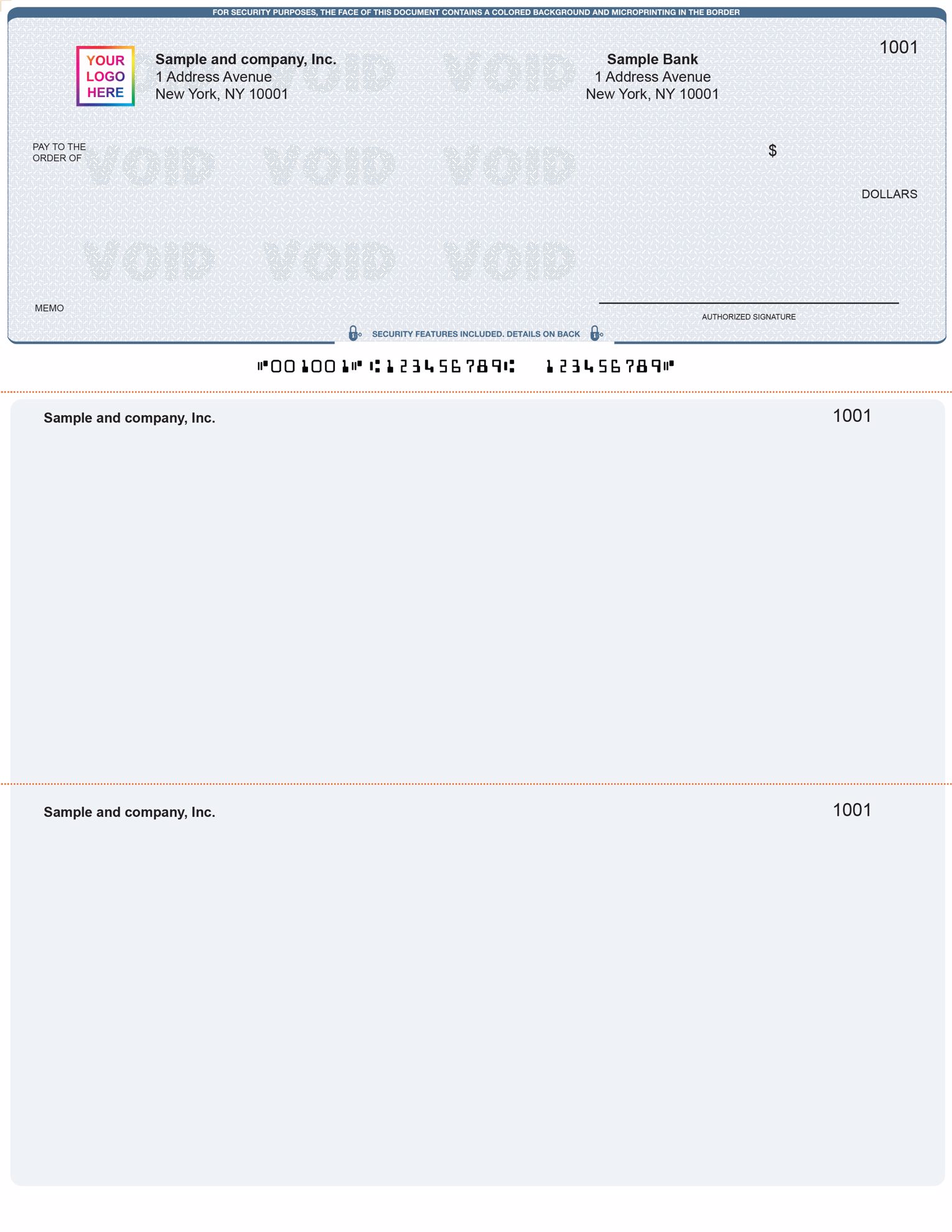
What does voiding a check in QuickBooks do?
Voiding a check in QuickBooks sets its amount to zero and adds VOID to the memo, while keeping the payee, date and check number on record. The expense and the bank balance go back to what they were before the check, and the number stays in your sequence so there is no gap.
That record is the reason to void rather than delete in most cases. An auditor or accountant can see that check number was used and cancelled, instead of finding a missing number.
Does voiding a check in QuickBooks stop payment?
No. Voiding only changes your books. If the paper check has been mailed or handed over, call your bank and ask for a stop payment on that check number. Then void it in QuickBooks so your books match.
How do you void a check in QuickBooks Online?
To void a check in QuickBooks Online, go to Expense transactions, find the check, open the More actions menu in its row and select Void. Confirm when asked. You can also open the check itself, select More at the bottom and choose Void.
- Open Expense transactions. Go to All apps, then Expenses & Bills, then Expense transactions.
- Find the check. Filter by type, date or payee.
- Select Void. Open the More actions menu in the check's row and select Void.
- Confirm. Select Yes. The check stays in the list with a zero amount and VOID in the memo.
Only checks, expenses and bill payments can be voided in QuickBooks Online. Other transactions can only be deleted. A void in QuickBooks Online cannot be undone, so check the date and number before you confirm.
How do you void a check in QuickBooks Desktop?
To void a check in QuickBooks Desktop, open the bank register, select the check, then choose Void Check from the Edit menu and select Record. QuickBooks sets the amount to zero and adds VOID to the memo.
- Open the register. Go to Banking, then Use Register, and choose the bank account.
- Select the check. Click anywhere on the check's line.
- Void it. Go to Edit, then Void Check.
- Record. Select Record to save the change.
You can also open the check in Write Checks and choose Void Check from the Edit menu there. If the check is dated before your closing date, QuickBooks Desktop asks how to handle it, which we cover in the closed period section below.
Should you void or delete a check?
Void a check that was written or printed but will not be cashed, such as a lost, spoiled or cancelled check. Delete a check only when it should never have been in your books, such as a duplicate entry. Voiding keeps the record and number; deleting removes both.
This table compares the two.
| Question | Void | Delete |
|---|---|---|
| Check number stays in the register | Yes | No |
| Amount after the action | Zero | Removed |
| Use for | Lost, spoiled or cancelled checks | Duplicates and entries made in error |
| Paid bill afterwards | Shows as unpaid | Shows as unpaid |
| Can be undone in QuickBooks Online | No | No, but the audit log keeps a record |
How do you void a blank or misprinted check?
To void a blank or misprinted check, record a check with that check number and then void it. This keeps your check number sequence complete, so the missing paper check does not raise questions at reconciliation or audit.
- QuickBooks Online: select + New (or + Create), then Check. Enter the bank account, the check number from the spoiled check, the date and an account, then select More and Void, and confirm.
- QuickBooks Desktop: open Write Checks, enter the check number, a payee and an expense account with a zero amount, then choose Void Check from the Edit menu and save.
If a check jammed during printing, reprint the payment on the next check and record the jammed number as a voided check. Our guide to printing checks in QuickBooks Online covers telling QuickBooks which checks need reprinting.
How do you void a bill payment check?
Voiding a bill payment check sets the payment to zero and puts the bill back to unpaid, so it appears again in Pay bills. That is what you want when the payment was lost and will be reissued, but not when the vendor was actually paid.
- QuickBooks Online: void the bill payment from Expense transactions or from the open payment, the same way as a check.
- QuickBooks Desktop: open the bill payment check and choose Void Bill Pmt-Check from the Edit menu. To handle several at once, work from the accounts payable register.
After voiding, pay the bill again through Pay bills so the new payment is linked to it.
How do you void a payroll check?
To void a paycheck in QuickBooks Online Payroll, go to Payroll, then Employees, open the list of paychecks, find the paycheck and choose Void from the Action menu. Voiding a paycheck does not cancel a direct deposit or return the money to you.
- Direct deposit: if a direct deposit reversal has failed, do not void the paycheck. Sort out the deposit first.
- Prior quarter or year: voiding a paycheck from an earlier quarter can require amended payroll tax filings. Talk to your accountant first.
- Paper paycheck lost: void the paycheck and create a new one, then print it on a new check with its own number.
Our guide to business checks for payroll explains what a payroll check and stub need to show.
How do you void a check from a closed period?
To cancel a check from a closed period or a prior year, leave the original check alone and record a reversing entry in the current period. Voiding the original changes balances you already reconciled and reported, while a current-period entry fixes the books without touching the closed period.
- Note the original accounts. In QuickBooks Online, open the check and print its transaction journal to see which accounts it posted to.
- Create the reversing entry. Create a journal entry dated in the current period with the same accounts and amounts reversed, or a deposit back to the bank account for the same amount.
- Clear both. Mark the original check and the reversing entry as cleared together at your next reconciliation.
In QuickBooks Desktop, if you void a check dated before your closing date that posted to an expense account, QuickBooks offers to create two journal entries so the void lands in the current period. Bill payment checks do not get this option. Agree the method with your accountant before you change anything in a closed year.
Can you unvoid a check in QuickBooks?
QuickBooks Online has no way to unvoid a check. To reverse a mistaken void, open the check's audit history to see the original amount and accounts, delete the voided check and enter it again. QuickBooks Desktop also has no unvoid button; you re-enter the original amount and details on the check.
- Find the original details. In QuickBooks Online, open the voided check, select More, then Audit history, and note the amount and accounts.
- Remove the void. Delete the voided check, or in Desktop edit the check to restore its amount and remove VOID from the memo.
- Re-enter the check. Use the same number, date and accounts.
- Check reconciliation. If the check was reconciled, re-mark it as cleared so the next reconciliation balances.
What does voiding do to reconciliation and the bank feed?
Voiding a check that is already reconciled changes the reconciled balance, so the next reconciliation shows a discrepancy. If a check has cleared the bank, do not void it in QuickBooks unless the bank actually returned the money.
- Voided a check that later cleared: the payment really happened, so re-enter the check and match the bank transaction to it.
- Voided a reconciled check by mistake: re-enter it with the original details and mark it cleared, then rerun the reconciliation report to confirm the balance.
- Bank feed: match cleared checks to the check you recorded instead of adding them again, or the expense shows twice.
How do you reissue a check after voiding it?
To reissue a check, void the original and create a new check for the same payee and amount with the next check number, then print it. Use a new number rather than reusing the voided one, so your register and the bank both see two separate checks.
The replacement has to print on the same stock as the original. Every Checkomatic QuickBooks check arrives with your company name, bank details and MICR line pre-printed, so QuickBooks only adds the payee, date and amount. On our product page, the QuickBooks check on top is rated 4.5 out of 5 from 71 customer reviews, and standard orders ship in three to five business days with rush options at checkout.
Running low after reissuing checks? Reorder QuickBooks checks with a free black and white logo on every order.
Questions about voiding checks
How do I void a check in QuickBooks Online?
Go to Expense transactions, find the check, open More actions in its row and select Void, then confirm. You can also open the check and choose Void under More.
How do I void a check in QuickBooks Desktop?
Open the bank register, select the check, choose Void Check from the Edit menu and select Record. The amount becomes zero and VOID is added to the memo.
Can you void a check after it is reconciled?
You can, but it changes the reconciled balance and causes a discrepancy. If the check cleared the bank, do not void it unless the money was returned.
How do I void a check from last year?
Leave the original check alone and record a reversing journal entry or deposit dated in the current period. Agree the method with your accountant first.
Can you delete a voided check?
Yes. In QuickBooks Online you can delete a voided check, which is the way to reverse a mistaken void before entering the check again.
Questions about what happens after a void
Does voiding a check stop the bank from paying it?
No. Voiding only changes your books. Call your bank to stop payment on a check that has already been mailed or handed over.
What happens to a bill when I void its payment?
The bill goes back to unpaid and appears in Pay bills again. Pay it again through Pay bills when you reissue the payment.
Does voiding a paycheck cancel the direct deposit?
No. Voiding a paycheck in QuickBooks does not cancel a direct deposit or return the funds. Handle the deposit separately first.
How do I find voided checks in QuickBooks?
Voided checks stay in the bank register and expense lists with a zero amount and VOID in the memo. Run a transaction report and filter the memo for Void to list them.
Should I reuse the check number of a voided check?
No. Give the replacement the next check number so the voided check and the new check stay separate in your records and at the bank.
Accepted by the world’s leading banks